Lay out the prints.
Put up to eight photos on a plain surface with a little space around each one.
Pic Magnet
Give treasured family photographs another chance to be seen.
Put your old prints on a table, take one picture with your iPhone, and let Pic Magnet separate the photos, straighten them, clean them up, and turn each one into a file you can actually use.
A one-time Mac app. No subscription. Your photos stay on your Mac.
The whole idea
1 → 8
One phone picture becomes eight separate, cleaned-up files.

An old photograph, before and after Pic Magnet. The scan border is removed and the light and contrast are adjusted. The people and scene stay as they were.
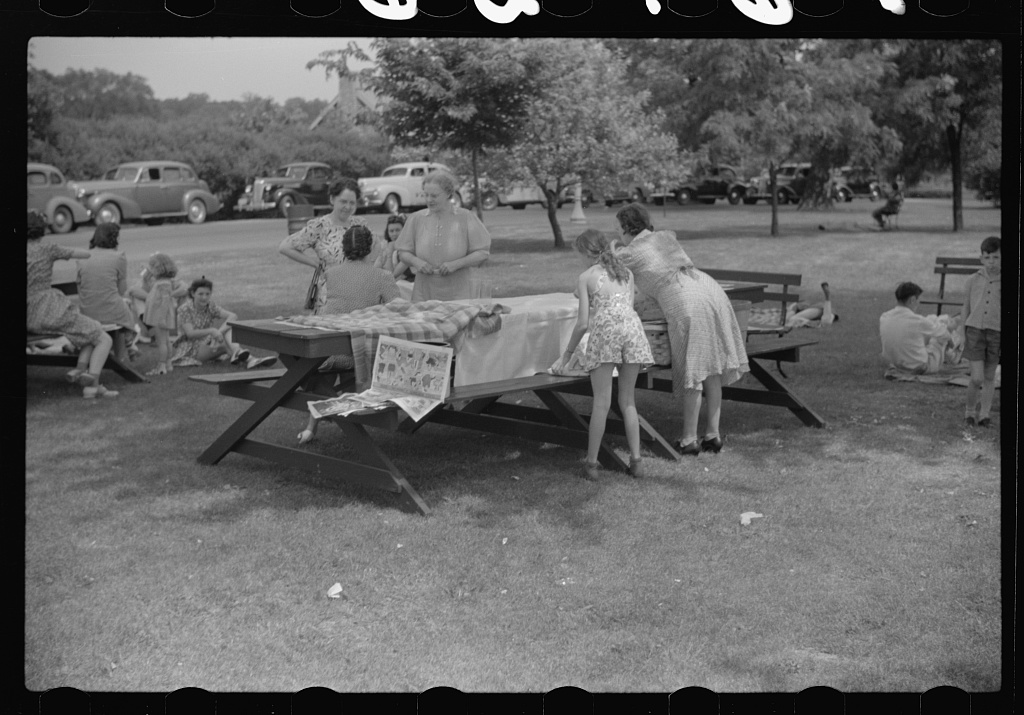
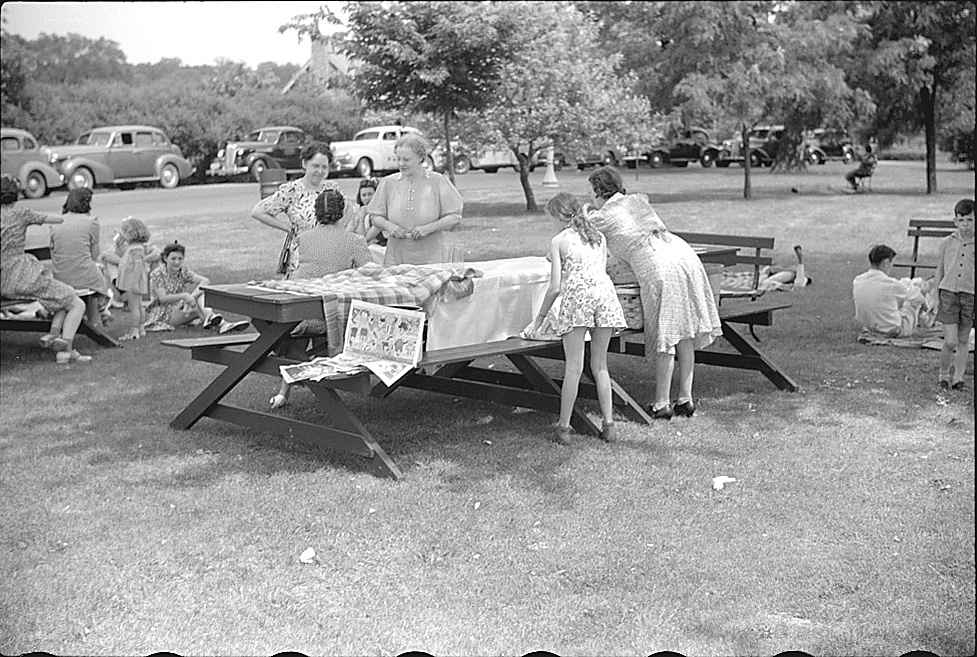
This is an archival scan opened as an existing image, with its corners selected by hand. It shows cleanup, not automatic separation of several prints or recovery of missing detail. Your results depend on the picture you supply.
Family picnic. Vincennes, Indiana, John Vachon, 1941. Public-domain photograph from the Library of Congress. The original file is preserved.
How simple it is
You don't need a scanner ritual or another cloud photo account. Pic Magnet uses your iPhone as the camera and your Mac as the place where the sorting and cleanup happen.
Put up to eight photos on a plain surface with a little space around each one.
Scan the code on your Mac, take the table photo with your iPhone, and send it straight to Pic Magnet.
Your Mac finds each print, corrects the angle, cleans up the image, and gives you separate files to review.
One table photo
1 → 8Separate files you can name, save, share, or add to Photos.The useful part
Pic Magnet does the repetitive part first. It finds the individual prints, straightens the perspective, lifts light and color, and keeps the original shot alongside the finished copies.
Keep your memories yours
Don't share your family photos with strangers just to get them into files.
Pic Magnet keeps the photo work on your Mac. The originals, the cleaned copies, and the folders you choose stay under your control. Circle handles purchase and access—not your family archive.
What it takes care of
Pic Magnet does the first pass, then leaves the final decisions with you.

Turn one table photo into individual image files instead of cropping every picture by hand.
Correct the perspective and rotation so a hand-held phone shot reads like a clean scan.
Balance light, color, contrast, shadows, and soft edges while keeping the untouched original.
Review the result, make a quick fix, and decide what stays, what gets exported, and what gets deleted.
Choose an image on the Mac or import selected pictures from Apple Photos. Pic Magnet processes them locally.
Let Pic Magnet suggest related photos, near-duplicates, and similar scenes. You review every local visual group.
Try it on the real pile
There is no subscription. Pic Magnet is a one-time personal license for one Mac, with your iPhone available as the local camera.
Start free. Keep it for $29.
Stripe comes first. It securely starts your 20-photo allowance, then brings you back to install Pic Magnet on your Mac.
Start with 20 cleaned photos Already started? Download Pic MagnetGood to know
No. Image processing, storage, comparison, and export happen on your Mac. The public service handles purchase and device access only.
No. It can suggest that two locally stored photos may show the same person, but it does not name, identify, or silently merge anyone. You review every suggestion.
No. Scan the code shown by Pic Magnet on the Mac. The iPhone opens a temporary camera surface for that local session.
Pic Magnet separates, straightens, and cleans up captured prints. Results depend on the picture you supply. It cannot recover details that were not captured or promise archival restoration.
The original table shot remains untouched. Cleanup and editing create separate finished files.
Yes. Choose an image from the Mac or import selected items from Apple Photos, then process and organize them locally.